Building demo authentication with Microsoft Entra External ID and email OTP
While planning a demo that lets users submit data and view it later, I needed to ensure that only the person who submitted the data could see it.
That required authentication, but I did not want administrators to register every demo user manually. I wanted users to register themselves without having to create a new password, so I chose a Microsoft Entra External ID external tenant with email one-time passcode (OTP) authentication.
This article covers the settings I used to create an external tenant and connect a React SPA to an Azure Functions API. I replaced all environment-specific information, including tenant IDs, application (client) IDs, Azure subscriptions, and host names, with placeholders.
Table of Contents
- Key takeaways
- Requirements and architecture
- Decisions to make before you start
- Create an external tenant
- Register the Web API
- Register the SPA
- Create a sign-up and sign-in user flow
- Configure authentication in the app
- Return only the current user’s data
- Test the configuration
- Troubleshooting
- Post-implementation checklist
- Summary
- Official sources
Key takeaways
This architecture keeps demo user accounts in an External ID external tenant instead of mixing them into the Microsoft Entra ID tenant used for employees. Demo users can register themselves with an OTP sent to their email address, without creating or remembering a new password.
The frontend and API are registered as separate applications in Microsoft Entra ID. SPA stands for single-page application; here, it refers to the React browser application.
| App registration | Role |
|---|---|
| SPA | Opens the authentication page and defines the redirect URI used after sign-in. Obtains an access token to call the Web API on behalf of the user |
| Web API | Defines the API that receives the access token and permissions such as access_as_user. Validates that each token is intended for the API and includes the required permission |
In other words, the SPA initiates authentication through the External ID page. The Web API registration does not open that page; it tells Microsoft Entra ID which API the SPA wants to call and which permission it requests.
The implementation required seven tasks:
- Confirm the source directory and Azure subscription, and arrange for the
Tenant Creatorrole - Create an external tenant and switch to its directory
- Register the Web API and SPA separately
- Expose a delegated permission scope on the API and add it to the SPA
- Create a sign-up and sign-in user flow that uses email OTP
- Associate the SPA with the user flow
- Obtain an access token in the SPA, then validate the token and data owner in the API
The critical point is that adding authentication alone does not restrict users to their own data. The API stores an immutable ID from the validated access token as the data owner. It must also filter every read and write operation by that ID before it can reliably return only the current user’s data.
For an overview of External ID use cases and how it differs from employee tenants and B2B collaboration, see Getting Started with Microsoft Entra External ID (2026 Edition).
Requirements and architecture
I built an authentication foundation that allows demo users to register themselves and sign in. This is not a B2B collaboration scenario in which business partners are invited to an employee tenant as guests.
| Item | Configuration |
|---|---|
| Users | General users who register themselves for the demo |
| Authentication platform | Microsoft Entra External ID external tenant |
| Authentication page | Microsoft-hosted sign-in page |
| Sign-in method | Email OTP |
| Client | React SPA, Authorization Code Flow + PKCE |
| API | Azure Functions Web API |
| Permission | Delegated access_as_user scope |
| Owner key | oid claim from the access token |
| Information collected during registration | Email address only |
| Client secret | None for either the SPA or API |
I registered the SPA and API separately. The SPA calls the API on behalf of the signed-in user, and the API accepts only access tokens issued for itself.
Decisions to make before you start
Before using the portal, I decided on the following values and operational responsibilities.
| Item | Decision |
|---|---|
| Source directory | The directory that owns the subscription and permits tenant creation |
| Billing scope | The subscription and resource group to associate with the external tenant |
| Tenant name | A name that makes the tenant’s purpose clear in the admin interface |
| Domain name | The subdomain for <TENANT_SUBDOMAIN>.onmicrosoft.com |
| Country/Region | Japan; this cannot be changed after creation |
| Go-Local | Not used for this implementation |
| App names | Separate names that clearly identify the SPA and API |
| Redirect URIs | The URIs that the SPA actually uses in local and production environments |
| Operations owners | People responsible for the apps, user flow, demo user accounts, and emergency recovery |
As of August 14, 2026, the official procedure requires the built-in Microsoft Entra directory role Tenant Creator to create an external tenant. This is not an Azure RBAC role. However, the official procedure calls for Tenant Creator to be assigned at the scope of an Azure subscription or resource group.
By contrast, Owner is an Azure RBAC role for managing resources such as Azure subscriptions. Because these roles belong to different role systems, an Azure subscription Owner still cannot create an external tenant without Tenant Creator.
The country/region cannot be changed later. Selecting Japan also displays the paid Go-Local data residency option. Before a production rollout, review your organization’s requirements and the official data residency information.
Create an external tenant
I created the external tenant in the Microsoft Entra admin center.
- Sign in to the Microsoft Entra admin center with an administrator account from the source directory
- Open Entra ID, Overview, and Manage tenants
- Select Create, then choose External as the tenant type
- Select Use Azure subscription
- Enter the tenant name, domain name, and country/region
- Select the subscription and resource group
- Review the settings under Review + create, then create the tenant
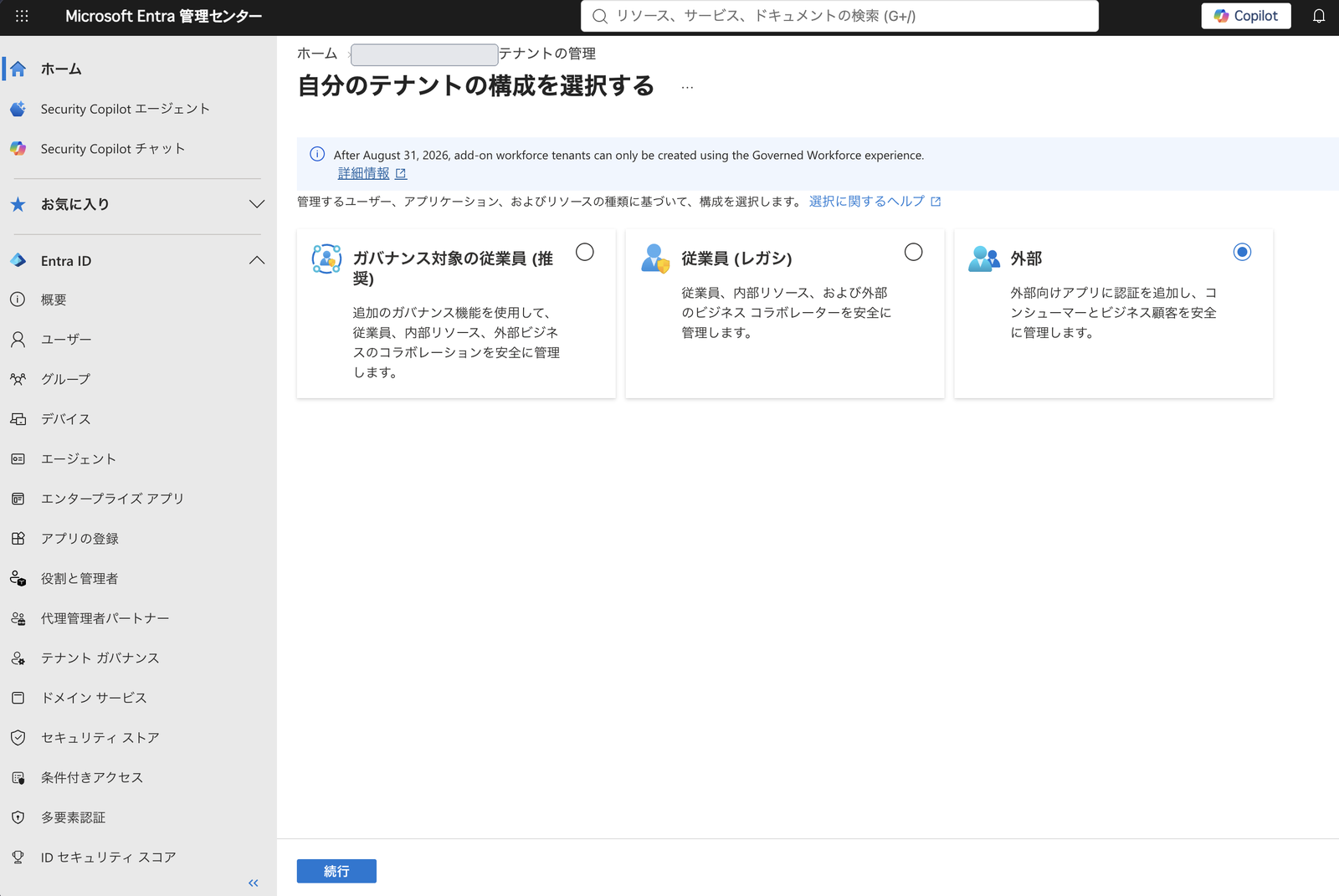
The official documentation notes that creation can take up to 30 minutes. After the tenant is created, switch to the new external tenant from Settings, Directories + subscriptions.
In Tenant overview, record the values you will use later to configure the applications.
Tenant name    : <EXTERNAL_TENANT_NAME>
Primary domain : <TENANT_SUBDOMAIN>.onmicrosoft.com
Tenant ID      : <EXTERNAL_TENANT_ID>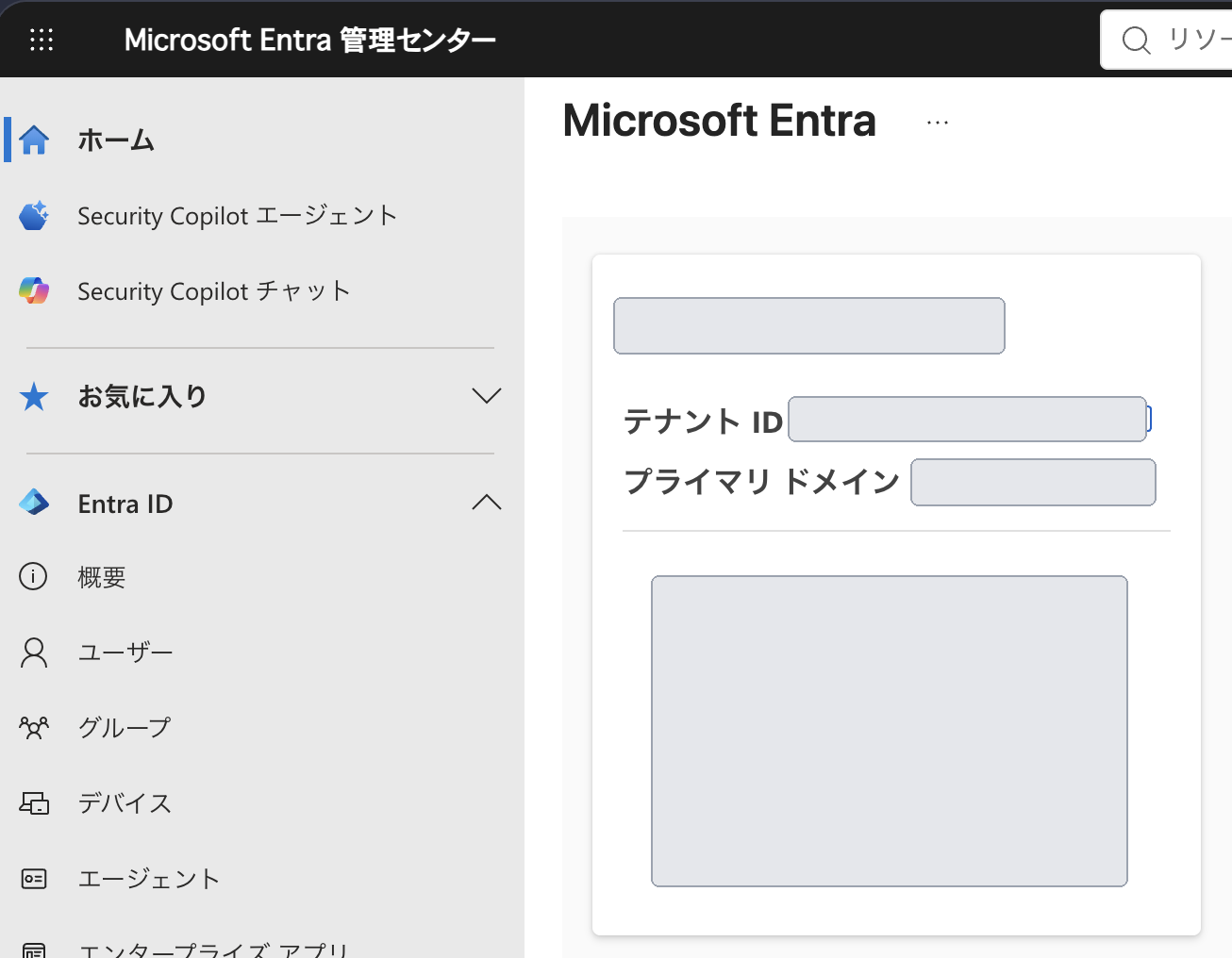
Tenant IDs and client IDs are not secrets, but they can identify an environment. Do not use real values in public materials. Also, do not record client secrets, access tokens, OTPs, or user email addresses.
Register the Web API
I first registered the Web API that the SPA will call.
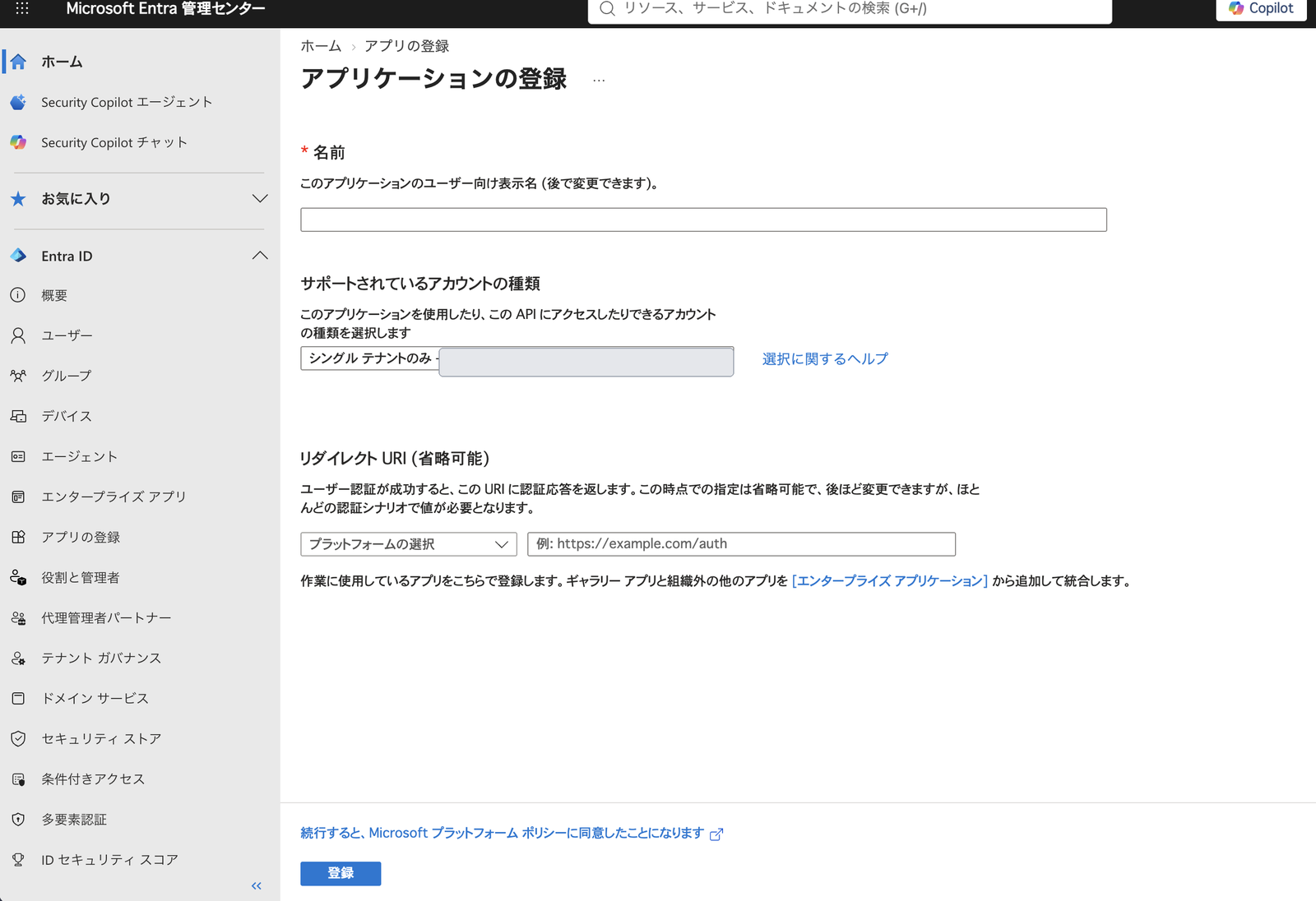
- While switched to the external tenant, open Entra ID, App registrations, and New registration
- Enter a name that clearly identifies the API’s purpose
- Register the app for accounts in this external tenant only
- Under Expose an API, set the Application ID URI to
api://<API_CLIENT_ID> - Under Add a scope, create a delegated scope that allows the API to be called on behalf of a user
I configured the scope as follows.
| Item | Value |
|---|---|
| Scope name | access_as_user |
| Who can consent | Admins and users |
| Admin consent display name | Access the demo API |
| User consent display name | Access the demo API |
| State | Enabled |
The SPA requests the scope by its full name.
api://<API_CLIENT_ID>/access_as_userBecause the API only validates access tokens received from the SPA in this implementation, I did not create a client secret for the API app registration.
A client secret is a credential that a server-side application uses to prove to Microsoft Entra ID that a token request comes from the application itself. It is required, for example, when a background job or service-to-service integration uses the client credentials flow without a signed-in user, when a server-side web application handles authentication, or when an API uses the On-Behalf-Of flow to call another API for a user.
For applications running on Azure, prefer managed identities or certificates, which are less susceptible to credential exposure, over client secrets that must be stored and rotated regularly.
Register the SPA
Next, I registered the SPA that calls the API.
- Open App registrations and New registration
- Enter a name that clearly identifies the SPA’s purpose
- Register the app for accounts in this external tenant only
- Select Authentication, Add a platform, and Single-page application
- Register the redirect URIs for the local and production environments
http://localhost:<LOCAL_PORT>
https://<APP_HOST>/auth/callback
The redirect URI must match the redirectUri sent by the SPA, including the scheme, host, port, path, and trailing slash. Because a SPA is delivered to the browser, it cannot keep a secret securely. Users can inspect a secret even if it is embedded in the code, so do not create a client secret for the SPA.
Next, open API permissions, Add a permission, and APIs my organization uses. Select the API registered earlier and add the delegated access_as_user permission. If the application does not use Microsoft Graph, also confirm whether it needs the default User.Read permission.
Create a sign-up and sign-in user flow
To use email OTP, first open External Identities, All identity providers, and confirm that Email One-time Passcode is enabled for the tenant.
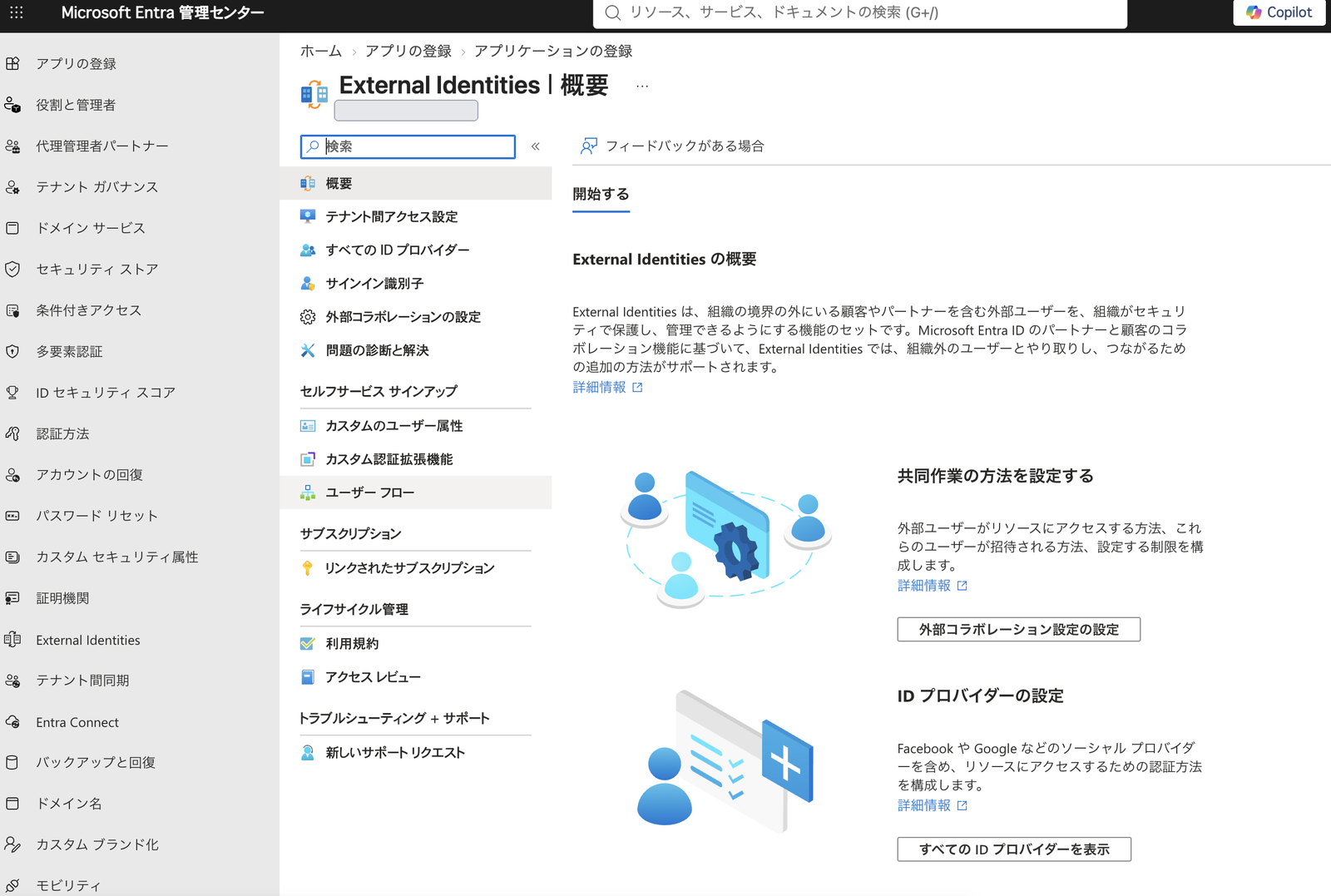
- Open External Identities, User flows, and New user flow
- Enter a name for the user flow
- Under identity providers, select Email Accounts and Email one-time passcode
- Select only Email Address as the attribute to collect from users, then create the flow
- Open Use, Applications in the user flow you created
- Select the SPA from Add application
One user flow can be associated with multiple applications. However, each application can be associated with only one user flow.
The b2c-extensions-app in the application list is created automatically to store custom attributes for the external tenant. Do not delete it, even if this implementation does not use custom attributes.
Configure authentication in the app
Do not guess the OIDC endpoints. Retrieve issuer and jwks_uri from the external tenant’s OpenID configuration.
https://<TENANT_SUBDOMAIN>.ciamlogin.com/<EXTERNAL_TENANT_ID>/v2.0/.well-known/openid-configurationConfigure the application with the following values.
authority : https://<TENANT_SUBDOMAIN>.ciamlogin.com/<EXTERNAL_TENANT_ID>
clientId  : <SPA_CLIENT_ID>
scope     : api://<API_CLIENT_ID>/access_as_user
audience  : <API_CLIENT_ID>
issuer    : <OPENID_CONFIGURATION_ISSUER>
jwksUri   : <OPENID_CONFIGURATION_JWKS_URI>
The SPA obtains an access token through Authorization Code Flow + PKCE. Using the signing keys and issuer information from the OpenID configuration, the API validates at least the signature and the iss, tid, aud, exp, nbf, and scp claims.
Send the API an access token issued for that API. The ID token allows the SPA to confirm the user’s sign-in state; it must not be used for API access control.
Return only the current user’s data
A successful sign-in alone does not prevent user A from reading user B’s data. The API must also determine who owns each item.
For this implementation, I stored the oid claim from the validated access token as the owner ID.
ownerId = verifiedAccessToken.oidWhen saving data, do not trust an owner ID supplied in the request body. Store the oid from the validated token with the data. For reads, updates, and deletes, do not query by the requested data ID alone; always include ownerId in the query criteria.
resourceId = <REQUEST_RESOURCE_ID>
ownerId    = verifiedAccessToken.oid
Email addresses can change, so do not use them as owner keys. An oid value is unique within a tenant. If the API accepts tokens from multiple tenants, combine it with the tid claim that identifies the tenant. This implementation allows tokens issued by only one external tenant.
Test the configuration
I verified the following successful flow.
- Start sign-up with an unregistered test email address
- Complete registration with the received OTP and confirm that the browser returns to the SPA
- Sign out, then confirm that the same account can sign in again
- Confirm that the SPA can obtain an access token with the
access_as_userscope - Confirm that the API validates the token and returns only the current user’s data
- Sign out, then confirm that the authentication cache is cleared and protected pages are no longer accessible
I also tested the following rejection cases.
- Reject API requests without a token with
401 Unauthorized - Reject expired tokens and tokens with a different issuer, tenant, target API, or scope
- Do not accept an ID token as an API access token
- Do not return another user’s data, even when a different user specifies its data ID
- Do not leave tokens, OTPs, or email addresses in logs, Application Insights, or browser storage
Troubleshooting
The external tenant creation button is disabled
In my case, Azure RBAC Owner was not enough to create an external tenant. The built-in Microsoft Entra directory role Tenant Creator is also required. Check these four items:
- The directory currently selected in the portal
- Whether tenant creation is allowed in the source directory
- Whether the Microsoft Entra
Tenant Creatorrole is assigned - The scope of
Tenant Creatorand access to the target subscription or resource group
For an account that belongs to multiple directories, check not only its permissions but also the directory selected in the upper-right corner of the portal.
Redirect URI mismatch
Do not mix the SPA origin with /auth/callback. Compare the authentication library’s redirectUri with the app registration value character by character. Check the localhost port, HTTP versus HTTPS, and the trailing slash as well.
The API returns 401 after receiving an access token
Check the following in order.
- Confirm that the request sends an access token, not an ID token
- Confirm that
audis the API’s client ID - Confirm that
scpincludesaccess_as_user - Confirm that
issandtidmatch the allowed external tenant - Confirm that the API uses the signing keys from the OpenID configuration
Do not paste token contents or personal information into public articles, Issues, or work logs.
Post-implementation checklist
Even after validating the PoC, additional work remains before operating this as an authentication platform.
- Remove the
Tenant Creatorrole if it was granted only to create the external tenant - Assign least-privilege roles to day-to-day administrators, require MFA, and review access regularly
- Create multiple cloud-only emergency administrator accounts protected by MFA
- Remove unnecessary permissions, redirect URIs, and test accounts
- Define procedures for deleting demo user accounts and application data, verifying identity, and auditing those actions
- Align Conditional Access, sign-in risk monitoring, rate limiting, and CSP with production requirements
- If using a custom domain, design the DNS, certificate, and recovery procedures
I did not grant the demo API Microsoft Graph permissions to delete directory users. Instead, administrators delete demo user accounts through a separate procedure.
Summary
To ensure that only the person who submitted demo data can view it, I configured a Microsoft Entra External ID external tenant, an email OTP user flow, and separate app registrations for the SPA and API.
External ID separates user self-registration and sign-in from the application. However, a successful sign-in alone does not ensure that the API returns only the current user’s data. The API must validate the token and restrict every data operation by using oid as the owner key.
During setup, check the currently selected directory, Tenant Creator, API scope, SPA permissions, and user flow association in that order. This makes missing configuration easier to identify.
Official sources
- Microsoft Entra External ID customer CIAM overview
- Create an external tenant
- Create a sign-up and sign-in user flow
- Add your application to the user flow
- Register an application
- Configure an application to expose a web API
- Configure a client application to access a web API
- Choose an authentication approach
- Validate claims in web APIs
- Microsoft Entra ID and data residency
- Microsoft Entra built-in roles